RabbitMQ directories and files, part 1: Log and config files
Your server’s disk is growing inordinately, and you’ve traced
this to a large RabbitMQ file or directory. Alternatively, your
RabbitMQ server may be refusing to start because of a corrupt
RabbitMQ file that you have identified.
In both scenarios, you consider deleting the file in question to
rid your RabbitMQ node of its plaque, but you are cautious,
cautious because you are not sure how deleting the file would
impact your RabbitMQ instance.
As you wallow in your thoughts, you realize that if you
understood the different RabbitMQ files and what they do, you
could map them to logical RabbitMQ entities. As a result, you
would know exactly how an action would impact your RabbitMQ
instance — for example, you’d know that deleting a durable queue
folder would result in message loss.
Gaining a comprehensive understanding of the various RabbitMQ
files and directories and their functions can significantly
boost your confidence when debugging your server. This two part
series, will delve into the major RabbitMQ files and directories
and explore their distinct roles.
RabbitMQ files and directories: categories
RabbitMQ creates a set of files and directories when installed on a
server. Here, we are particularly interested in the
Config files, Log files, and Data directory.
In this piece we will cover config and log files and in part-2, we will
demystify the data directory. If you are already familiar with RabbitMQ config and log files,
you can skip to part-2.
Config files
It is common practice to fine-tune a RabbitMQ node to fit one’s
peculiarities. For example, you might want to set your preferred
authentication mechanism and backend. The behavior of a RabbitMQ server
and its plugins can be defined via configuration files.
In all the supported versions of RabbitMQ, the main configuration file is named rabbitmq.conf
And named rabbitmq.config in the older RabbitMQ versions.
While configurations in the rabbitmq.conf are specified using the
sysctl format,
the classic rabbitmq.config adopts the Erlang Format.
The sysctl-like syntax of the
rabbitmq.conf
file is significantly simpler, making it more readable.
However, it is comparatively limited compared to the classic
rabbitmq.config.
For instance, in scenarios where the utilization of deeply nested data
structures might be necessary to express a configuration, this becomes a
challenge.
To address this limitation of the
rabbitmq.conf,
modern versions of RabbitMQ offer the flexibility to use both formats
concurrently in separate files. The
rabbitmq.conf
file employs the new format, while a second file,
advanced.config,
handles more advanced settings that cannot be expressed in the
sysctl-style syntax.
It is also worth noting that there is a third configuration file, the
rabbitmq-env.conf,
where RabbitMQ-related OS environment variables are declared.
Config files location
The location of these RabbitMQ configuration files varies across
different operating systems and package types.
For example:
For RabbitMQ installed with homebrew on an Apple Silicon Mac, all the config files are located in /opt/homebrew/etc/rabbitmq/
And for Debian, Ubuntu, and RPM-based Linux machines all the config files are located in /etc/rabbitmq/
If you are not sure where to locate your configuration files, here are
two ways to:
Run the command,
rabbitmq-diagnostics status
in your terminal and go
to the config files section. On my Apple Silicon Mac, I get this:
I currently have only one configuration file at the moment
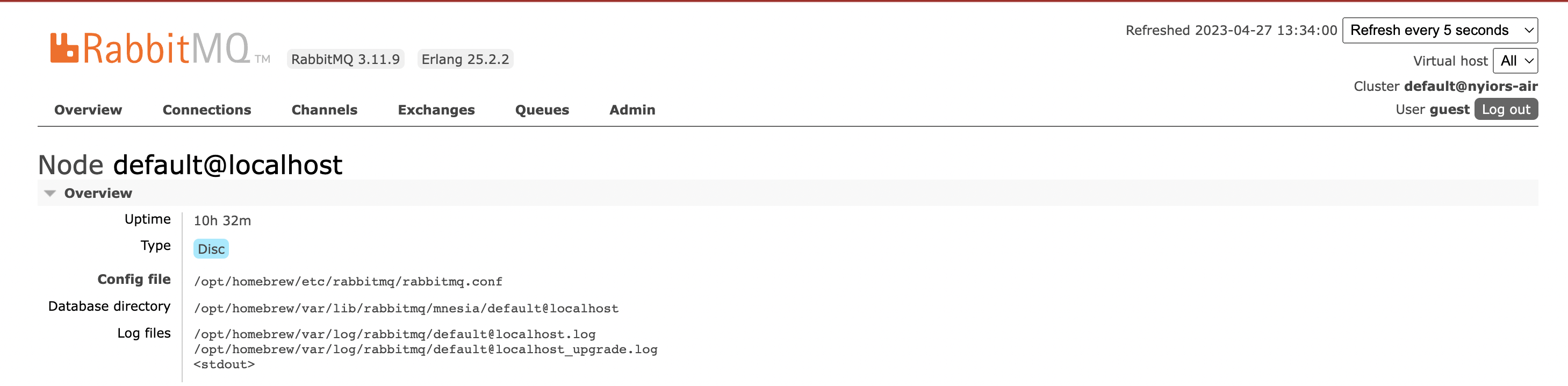
From the management UI:
Nodes -> Click on your default node, rabbit@localhost(or any other node) -> Overview
Figure 1 - RabbitMQ files location
In addition to the location of the config files, the UI page also
reports the location of the Log files and the Data directory - we
will get to these in the subsequent sections.
Log files
Logging, which essentially encompasses keeping a record of events as they
occur in a given software system, plays a critical role in system
monitoring and even observability - the good thing is, RabbitMQ supports
a number of logging capabilities.
RabbitMQ logs events out of the box on node start - The output RabbitMQ
logs these events to would largely depend on your configuration, but it
is usually one or more of the following:
Log files
Standard output and error streams
Syslog
A system topic exchange
With Standard output, RabbitMQ sends logs to the console.
With syslog, RabbitMQ sends its logs to a syslog server via the UDP or
TCP protocol. With a system topic exchange, RabbitMQ publishes its logs
to a topic exchange that could be bound to one or more queues. However,
here we are more interested in the first option, logging into a file.
Logging to a file is a prevalent choice for RabbitMQ installations.
In recent versions, RabbitMQ nodes will only log to a file when
specifically configured using the provided configuration keys mentioned
below.
The log file path can be specified using the log.file configuration option, and setting it to false disables file output. By default, the value is retrieved from the RABBITMQ_LOGS environment variable or the configuration file
The log level for the file output is determined by the log.file.level option, with the default level being info.
To choose between text lines or JSON as the log entry format, the log.file.formatter option is used
Log file rotation settings can be configured using log.file.rotation.date, log.file.rotation.size, and log.file.rotation.count
Timestamp formatting for the log file entries can be controlled through the log.file.formatter.time_format option.
Log files location
Again, the location of the RabbitMQ log files varies across different
operating systems and package types. For example, RabbitMQ installed
with Homebrew on an Apple Silicon Mac, all the config files are located
in
/opt/homebrew/var/log/rabbitmq/
If you are not sure where to locate your configuration files, here are
two ways to:
Run the command,
rabbitmq-diagnostics status
in your terminal and go
to the log files section. On my Apple Silicon Mac, I get this:
You can also check the location of your log files from the management UI,
as described in the config files section
What’s Next?
Throughout this piece we’ve focused on the config and log files.
While the configuration files allow you to modify the broker’s settings,
the log files on the other hand help to monitor the broker’s health.
In the next article in this series we’ll be exploring the data directory.
Easily create a
free RabbitMQ
or
free LavinMQ
instance today to start testing out message queues. You will be
asked to sign up first if you do not have an account, but it’s
super easy to do. For any suggestions, questions, or feedback, get in touch with
us at
contact@cloudamqp.com
Guide — RabbitMQ Directories and Files
CloudAMQP - industry-leading RabbitMQ as a Service
Fully managed RabbitMQ clusters on all major clouds. Free plan available - no credit card required.

 Nyior and Peter