In this guide, we’ll walk through automating LavinMQ configuration with Terraform using the official LavinMQ Terraform provider. We’ll use LavinMQ as a managed service on CloudAMQP, though the same approach applies to any deployment with the HTTP API enabled.
Why automating LavinMQ instance configuration with Terraform
Automating LavinMQ configuration with Terraform brings structure to broker setup as it grows. Rather than relying on ad-hoc changes in the management UI, you define the desired state - users, vhosts, permissions, and policies in code and apply it consistently across environments. Because the configuration is version-controlled, changes are reviewable and predictable, and it’s easy to reproduce the same setup without manual UI work. In short, Terraform makes your LavinMQ configuration explicit, trackable, and repeatable, while helping prevent drift over time.
At a high level, the flow looks like this:

Terraform talks directly to LavinMQ’s management API. We’re not provisioning the CloudAMQP instance itself, only managing what lives inside the broker, such as users, permissions, and policies. To follow along, make sure you have:
- A CloudAMQP LavinMQ instance
- Credentials with access to the LavinMQ management API
- Terraform (v1.x)
- Basic familiarity with Terraform commands
Step 1: Get your CloudAMQP LavinMQ connection details
Log in to the CloudAMQP console and open your LavinMQ instance. On the Overview page (as shown in the screenshot below), collect the following information:
HTTP API URL
Found under General → Hosts. This is the base URL Terraform will use to connect to LavinMQ.
Username
Found under AMQP details → User & Vhost
Password
Found under AMQP details → Password.
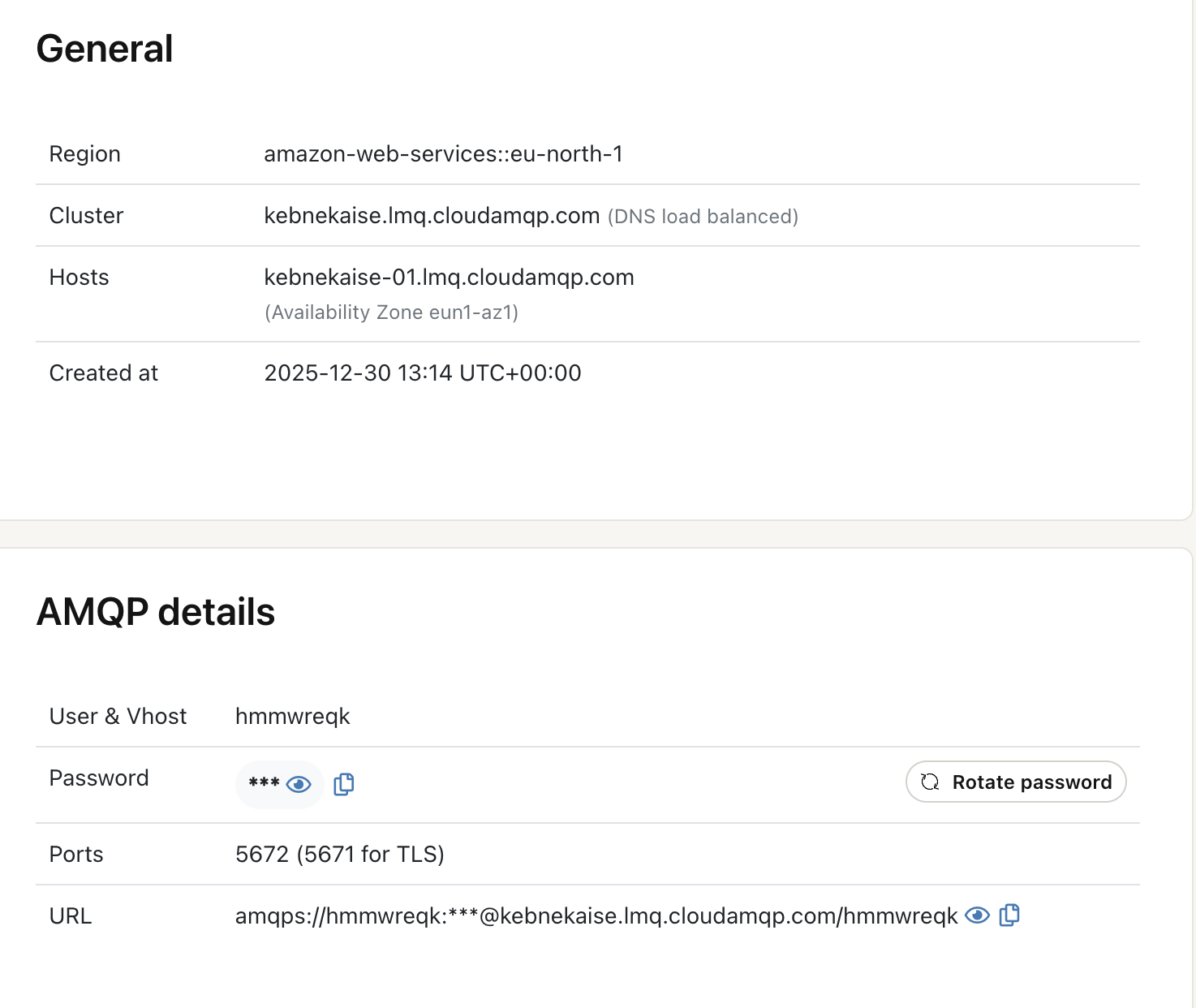
These are the values that you will use when configuring the LavinMQ Terraform provider.
Step 2 Create a clean Terraform project. A simple structu
lavinmq-terraform-demo/
└── terraform/
    ├── main.tf
    ├── variables.tf
    ├── terraform.tfvars.example
    └── .terraform.lock.hcl
Step 3 define variables
Declare variables so secrets and environment-specific values stay out of our main config.
variables.tf
variable "lavinmq_baseurl" {
  description = "LavinMQ HTTP API base URL"
  type        = string
}

variable "lavinmq_username" {
  type      = string
  sensitive = true
}

variable "lavinmq_password" {
  type      = string
  sensitive = true
}

variable "vhost" {
  type    = string
  default = "app"
}

variable "app_user" {
  type    = string
  default = "app-user"
}

variable "app_password" {
  type      = string
  sensitive = true
}

variable "queue_message_ttl_ms" {
  type    = number
  default = 86400000 # 24 hours
}

variable "queue_max_length" {
  type    = number
  default = 10000
}
Step 4 Provide environment variables
Create a local variables file.
terraform.tfvars.example
lavinmq_baseurl  = "https://my-lavinmq-instance.cloudamqp.com" # replace with your HTTP API URL – see screenshot above
lavinmq_username = "admin-user"                               # replace with your username – see screenshot above
lavinmq_password = "super-secret-password"                    # replace with your password – see screenshot above

vhost        = "app"
app_user     = "app-user"
app_password = "change-me"
Copy it to create a local, environment-specific configuration that Terraform automatically loads
cp terraform.tfvars.example terraform.tfvars
In real setups, these values are usually injected via environment variables or a secrets manager instead of a
.tfvars
file like this:
export TF_VAR_lavinmq_baseurl="https://my-lavinmq-instance.cloudamqp.com"
export TF_VAR_lavinmq_username="admin-user"
export TF_VAR_lavinmq_password="super-secret-password"
export TF_VAR_app_password="change-me"
Step 5 Configure the LavinMQ Terraform provider
The provider we will use is published by CloudAMQP and maintained as an open-source project on
GitHub.
In this example, we apply limits to all queues whose names start with
app.
- Messages expire after 24 hours
- Queues are capped at 10,000 messages
Any queue that matches the pattern automatically inherits these limits; no per-queue configuration is required.
main.tf
terraform {
  required_providers {
    lavinmq = {
      source  = "cloudamqp/lavinmq"
      version = ">= 0.1.0"
    }
  }
}

provider "lavinmq" {
  baseurl  = var.lavinmq_baseurl
  username = var.lavinmq_username
  password = var.lavinmq_password
}

# Vhost
resource "lavinmq_vhost" "app" {
  name = var.vhost
}

# User
resource "lavinmq_user" "app" {
  name     = var.app_user
  password = var.app_password
  tags     = ["policymaker"]
}

# Permissions
resource "lavinmq_permission" "app" {
  vhost     = lavinmq_vhost.app.name
  user      = lavinmq_user.app.name
  configure = ".*"
  read      = ".*"
  write     = ".*"
}

# Policy
resource "lavinmq_policy" "app_guardrails" {
  vhost    = lavinmq_vhost.app.name
  name     = "app-queue-guardrails"
  pattern  = "^app\\..*"
  apply_to = "queues"
  priority = 10

  definition = jsonencode({
    "message-ttl" = var.queue_message_ttl_ms
    "max-length"  = var.queue_max_length
  })
}
This tells Terraform which provider to use, and how to authenticate against the LavinMQ HTTP API.
Step 6 Apply safely
From the
terraform/
directory:
terraform init
terraform plan
Review the plan carefully. Seeing changes *before* they happen is one of Terraform’s biggest advantages. When you’re happy:
terraform applyStep 7 Verify in the CloudAMQP LavinMQ UI
Open the LavinMQ management UI and check that Vhosts, Users, Permissions, and Policies are created.
Create a test queue like
app.orders
or
app.payments
and confirm the policy is applied automatically.
At this point, you’ve verified that Terraform can safely manage LavinMQ configuration through code. Policies are applied automatically, new queues inherit guardrails instantly, and changes are visible before they’re applied.
Want to manage your LavinMQ setup with Terraform? Create a LavinMQ instance on CloudAMQP and follow this guide step by step.