
RabbitMQ Management is a plugin that can be enabled for RabbitMQ. It is a single static HTML page that makes background queries to the RabbitMQ HTTP API. Information from the management interface can be useful when you are debugging your applications or when you need an overview of the whole system. If you see that the number of unacked messages starts to get high, it could mean that your consumers are getting slow. If you need to check that an exchange is working, you can send a test message.
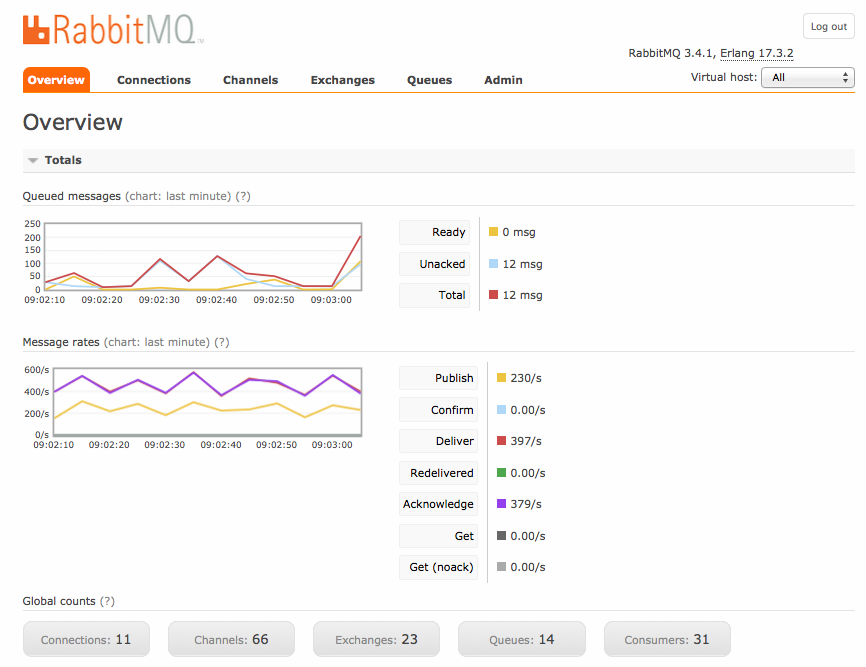
A link to the RabbitMQ management interface can be
found on the details page for your CloudAMQP instance.
If you have RabbitMQ installed on localhost, go to
http://localhost:15672/
to find the management page.
All the tabs in the menu are explained in this post, with screenshots of these views: Overview, Connections and channels, Exchanges, Queues and Admin - users and permissions. A simple example also shows how to set up a queue and an exchange and add a binding between them.
Concepts
Before going through the views, here are a few concepts that are good to know.
- Users: Users can be added from the management interface, and every user can be given permissions to read, write and configure. Users can also be assigned permissions to specific virtual hosts.
- Vhost, virtual host: Virtual hosts provide a way to separate applications that use the same RabbitMQ instance. Users can have different permissions in different vhosts, and queues and exchanges exist in only one vhost.
- Cluster: A cluster consists of a set of connected computers that work together. A RabbitMQ instance that consists of more than one node is called a RabbitMQ cluster.
- Node: A node is a single computer in the RabbitMQ cluster.
Overview
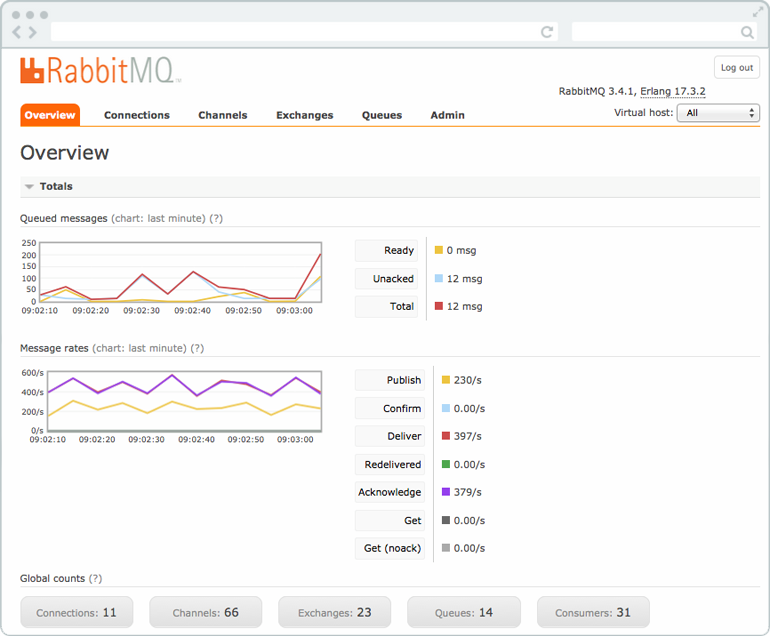
The overview shows two charts, one for queued messages and one with the message rate. You can change the time interval shown in the charts by clicking the text (chart: last minute) above the charts. Click (?) for an explanation of each message status.
Queued messages
A chart of the total number of queued messages for all your queues. Ready shows the number of messages that are available to be delivered. Unacked is the number of messages for which the server is waiting for an acknowledgment.Messages rate
A chart of the rate at which messages are handled. Publish shows the rate at which messages enter the server, and Confirm shows the rate at which the server confirms them.Global Count
The total number of connections, channels, exchanges, queues and consumers for all virtual hosts the current user has access to.
Nodes
Nodes shows information about the different nodes in the RabbitMQ cluster, or about the single node if just one node is used. Here you'll find information about server memory, the number of Erlang processes per node and other node-specific information. Info shows more information about the node, such as the enabled plugins.

Port and contexts
Listening ports for each protocol, such as AMQP, MQTT and the management interface itself, are listed here.

Import export definitions
You can import and export configuration definitions. When you download the definitions, you get a JSON representation of your broker (your RabbitMQ settings). It can be used to restore exchanges, queues, virtual hosts, policies, and users, so it works as a backup. Every time you make a change in the config, you can keep the old settings just in case.

Connections and channels
A connection is a TCP connection between your application and the RabbitMQ broker. A channel is a virtual connection inside a connection.
RabbitMQ connections and channels can be in different states; starting, tuning, opening, running, flow, blocking, blocked, closing, closed. If a connection enters flow control, this often means that the client is being rate-limited in some way. Read more in Finding bottlenecks with RabbitMQ.
Connections
The Connections tab shows the connections established to the RabbitMQ server. vhost shows which vhost the connection operates in, username shows the user associated with the connection, Channels shows the number of channels using the connection, and SSL/TLS indicates whether the connection is secured with TLS.

If you click on one of the connections, you get an overview of that specific connection. You can view its channels, data rates and client properties, and you can close the connection.

More information about the attributes of a connection can be found in the rabbitmqctl manual. rabbitmqctl is the command line tool for managing a RabbitMQ broker.
Channels
The Channels tab shows information about all current channels.
vhost
shows which vhost the channel operates in, and
username
shows the user associated with the channel.
Mode
shows the channel's guarantee mode, which can be
confirm or transactional mode.
When a channel is in confirm mode, both the broker and the client
count messages. The broker then confirms messages as it handles them.
Confirm mode is activated once the
confirm.select
method is used on a channel.

If you click on one of the channels, you get a detailed overview of that specific channel. From here you can see the message rate and the number of consumers retrieving messages via the channel.

More information about the attributes of a channel can be found in the rabbitmqctl manual.
Exchanges
An exchange receives messages from producers and pushes them to queues. The exchange must know exactly what to do with a message it receives. All exchanges are listed in the Exchanges tab. Virtual host shows the vhost for the exchange, Type is the exchange type, such as direct, topic, headers or fanout, and Features shows the parameters for the exchange (for example, D stands for durable and AD for auto-delete). Features and types can be specified when the exchange is created. The list also includes some amq.* exchanges and the default (unnamed) exchange, which RabbitMQ creates by default.
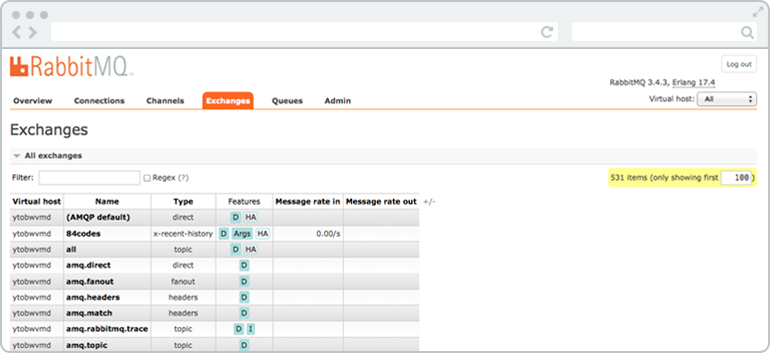
Click an exchange name to see a detailed page about the exchange. You can see and add bindings to the exchange. You can also publish a message to the exchange or delete the exchange.

Queues
The Queues tab shows the queues for all vhosts or one selected vhost. The type column shows whether the queue is a classic queue, a quorum queue or a stream. RabbitMQ Queue Types Explained goes through the differences.
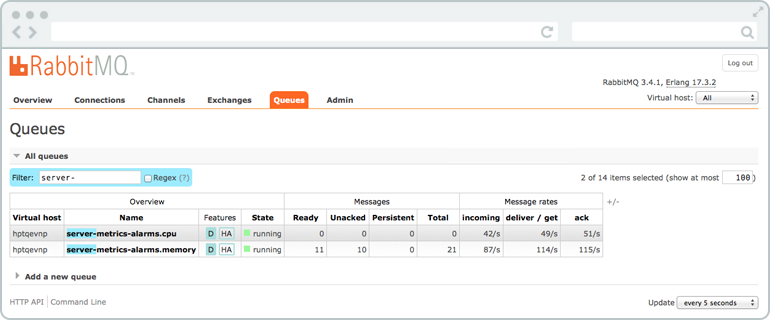
Queues have different parameters and arguments depending on how they were created. The features column shows the parameters that belong to the queue, such as Durable queue (the queue survives a broker restart), Message TTL (how long a message published to the queue can live before it is discarded), Auto expire (how long the queue can be unused before it is automatically deleted), Max length (how many ready messages the queue can hold before it starts to drop them) and Max length bytes (the total body size of ready messages the queue can hold before it starts to drop them).
You can also create a queue from this view.
Click a queue in the list to see all information about it, as in the pictures below.
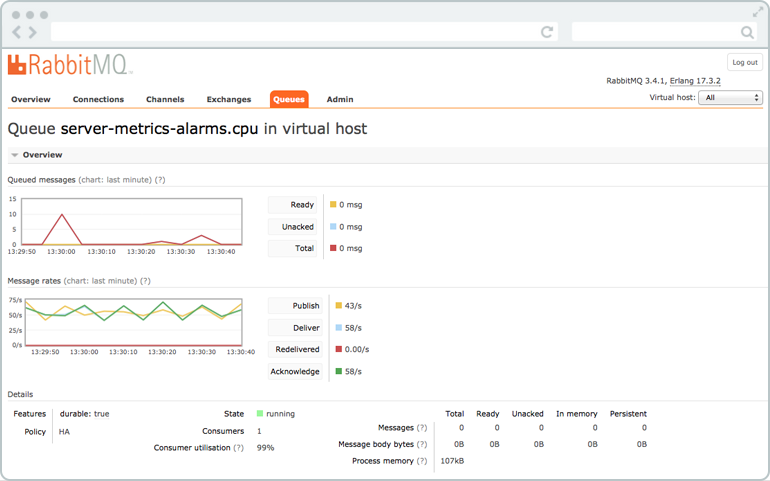
The first two charts show the same information as the overview, but only the queued messages and message rates for that specific queue.
Consumers
Consumers shows the consumers and channels that are connected to the queue.

Bindings
A binding can be created between an exchange and a queue. All active bindings to the queue are shown under Bindings. You can also create a new binding to the queue from here, or unbind the queue from an exchange.

Publish message
You can publish a message to the queue manually from "Publish message". The message is published to the default exchange with the queue name as the routing key, which means that it is sent to the queue. You can also publish a message to an exchange from the exchange view.

Get message
You can inspect the messages in the queue manually. "Get messages" lets you look at messages in the queue. Choose "Nack message requeue true" to put them back afterwards. "Automatic ack" removes them from the queue.

Delete or Purge queue
A queue can be deleted with the Delete button, and you can empty the queue with Purge.

Admin
From the Admin view, you can add users and change user permissions. You can also set up vhosts, policies, federation, and shovels. Read more about shovels and federation:
- CloudAMQP Documentation - Shovel plugin
- RabbitMQ.com - Shovel Plugin
- CloudAMQP - The RabbitMQ federation plugin


Example
This example shows how to create a queue called "example-queue" and an exchange called example.exchange.


The exchange and the queue are connected by a binding with the binding key "pdfprocess". Messages published to the exchange with the routing key "pdfprocess" will end up in the queue.


A lot can be viewed and handled from the management interface, and it gives you a good overview of your system. By looking around in the management interface, you'll get a good understanding of RabbitMQ and how everything is related.
Please email us at contact@cloudamqp.com if you have any suggestions or feedback.
Guide — RabbitMQ for beginners
CloudAMQP - industry-leading RabbitMQ as a Service
Fully managed RabbitMQ clusters on all major clouds. Free plan available - no credit card required.
Sign up for free
 Lovisa Johansson