Two-Factor Authentication
Two-factor authentication (2FA) adds a second step to sign-in, on top of your password. Once enabled, logging in requires both your password and a single-use code from an authenticator app, so your account stays protected even if your password is leaked.
CloudAMQP's two-factor authentication is based on the Time-based One-Time Password (TOTP) standard, so it works with any authenticator app, such as Google Authenticator, Authy, 1Password, or Microsoft Authenticator.
Two-factor authentication is optional for individual users, but a team admin can require it for the whole team.
Enable two-factor authentication
-
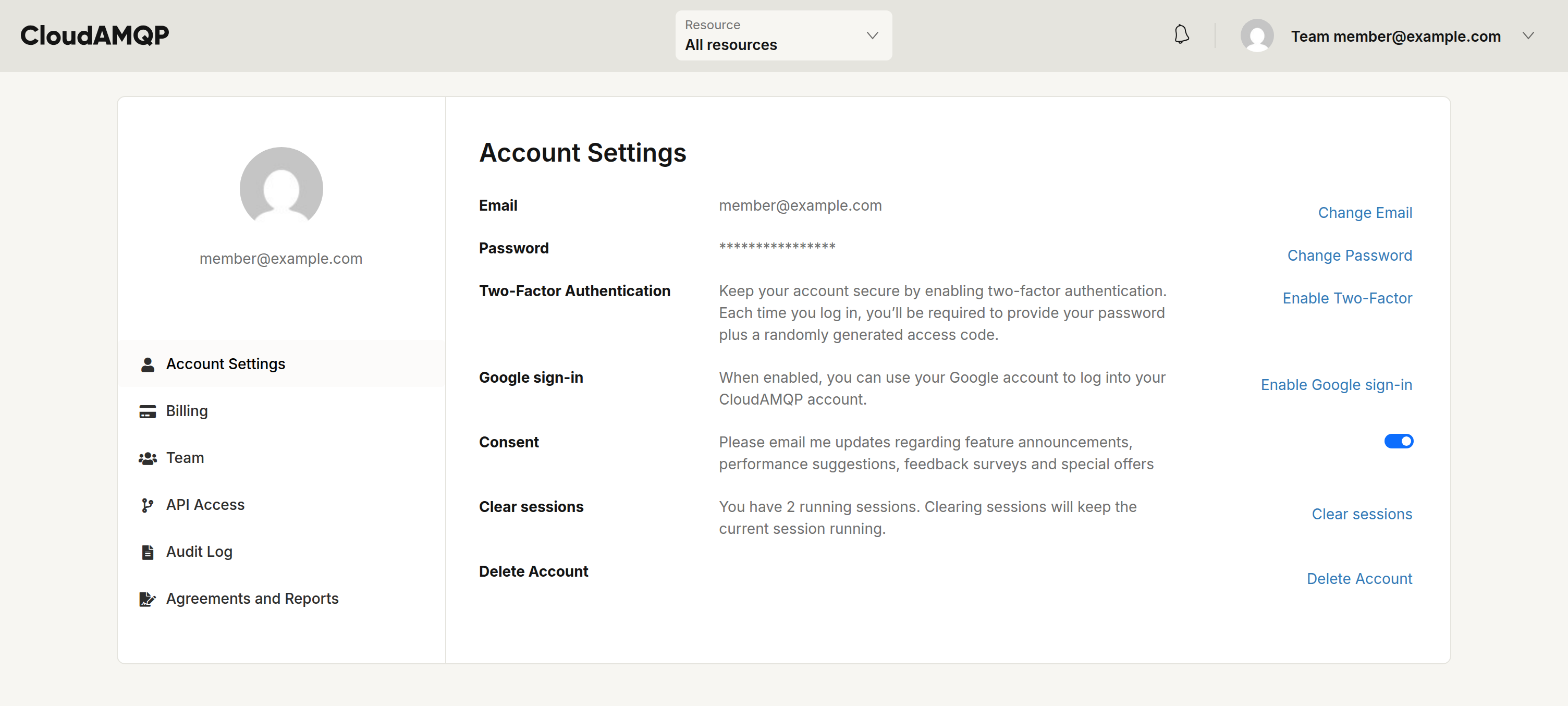
Open
Account Settings
from the user menu. Next to
Two-Factor Authentication,
click
Enable Two-Factor.
Account settings are locked by default, so unless you've confirmed
your password recently you'll be asked to re-enter it before making
changes — you can also lock them again at any time with
Lock settings.
Once confirmed, settings stay unlocked for about 15 minutes.
-
Open your authenticator app and scan the QR code. If you can't scan it,
reveal the security code and enter it manually instead.
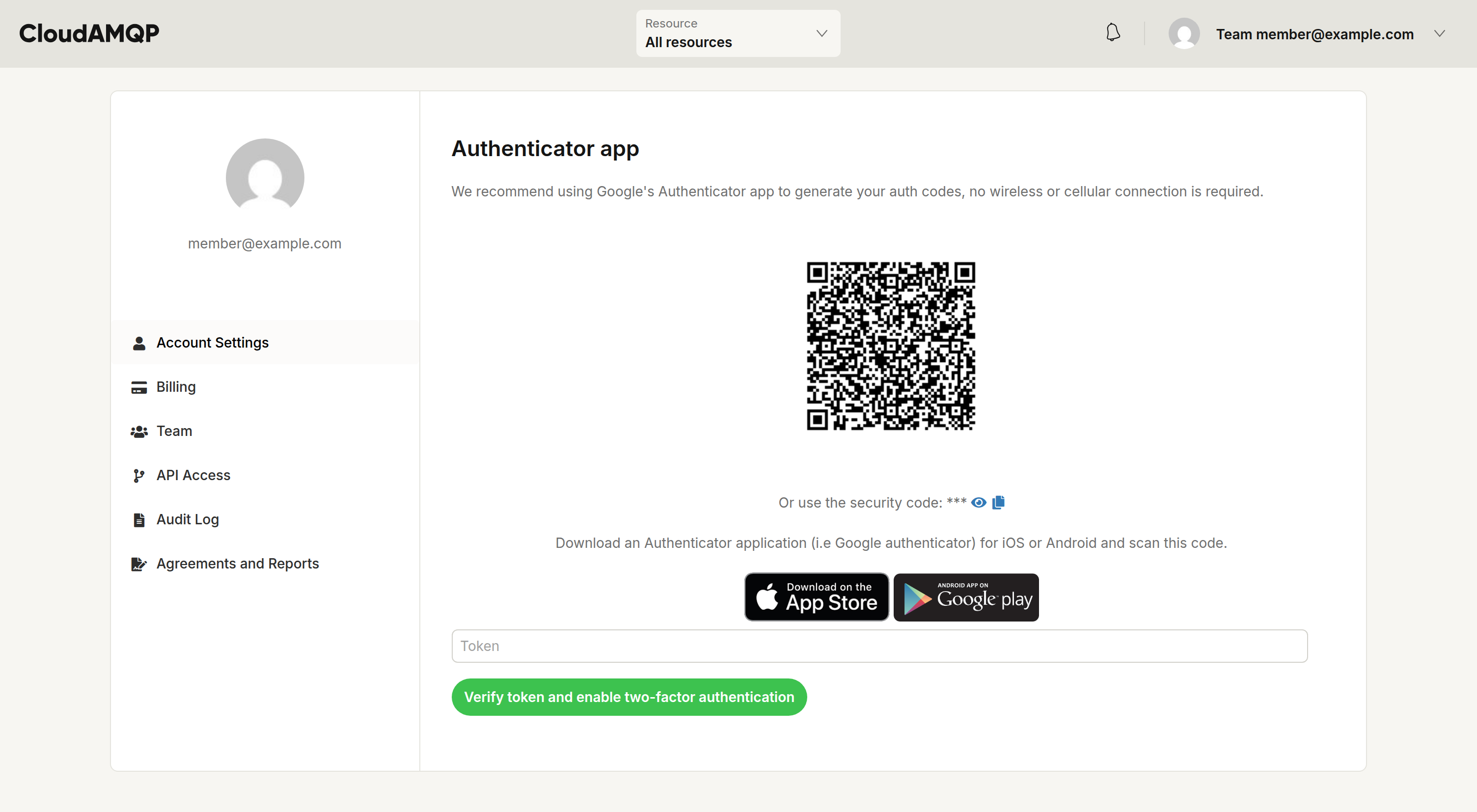
- Enter the six-digit code shown by your authenticator app and click Verify token and enable two-factor authentication.
-
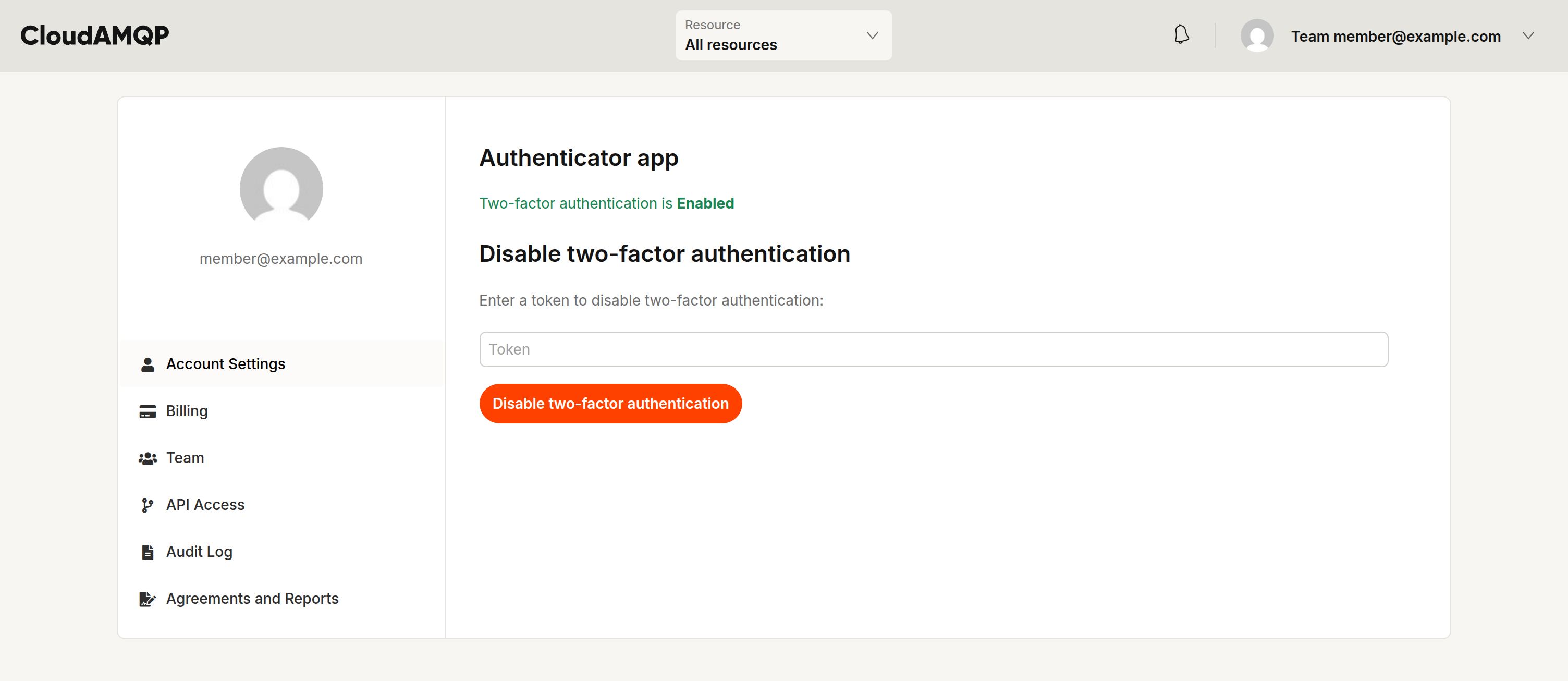
Two-factor authentication is now enabled on your account. From here you
can also disable it again, which requires a valid code.
Signing in with two-factor authentication
After enabling 2FA, each sign-in prompts for a one-time code once you've entered your password. Open your authenticator app and enter the current code to continue.
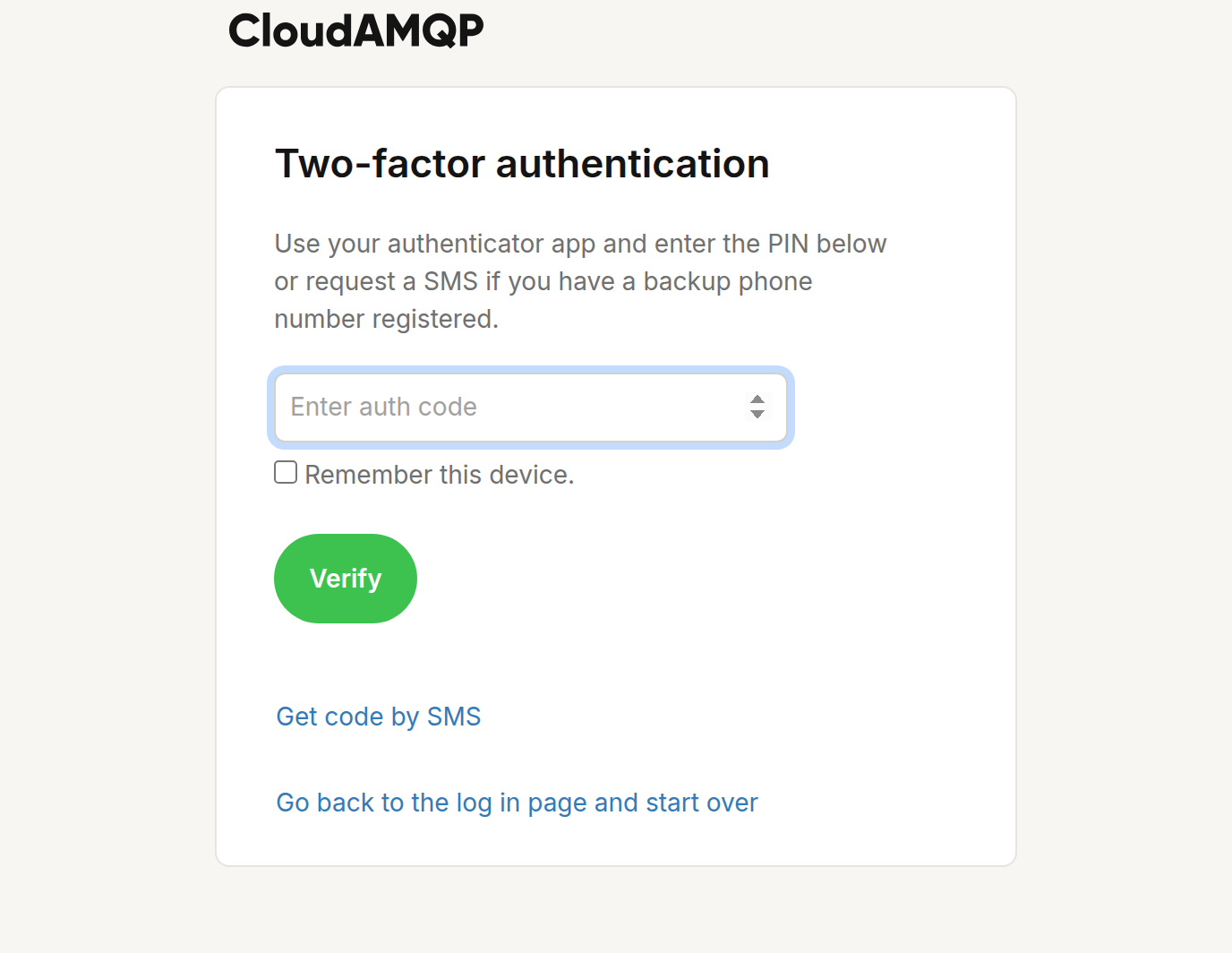
Tick Remember this device to skip the code on that browser for a while. If you have a backup phone number registered, you can also request the code by SMS from this screen.
Backup phone number
Once 2FA is enabled you may add a backup phone number. It lets you receive a code by SMS if you ever lose access to your authenticator app. An authenticator app remains the recommended primary method — a phone number on its own is not considered sufficient.
Disable two-factor authentication
To turn 2FA off, open Account Settings → Two-Factor and enter a current code in the Disable two-factor authentication section. Any backup phone number is removed at the same time.
Enforce two-factor authentication for a team
Teams can require two-factor authentication at their own discretion. A team admin enables it under Team → Settings by turning on Enforced Two-factor authentication.
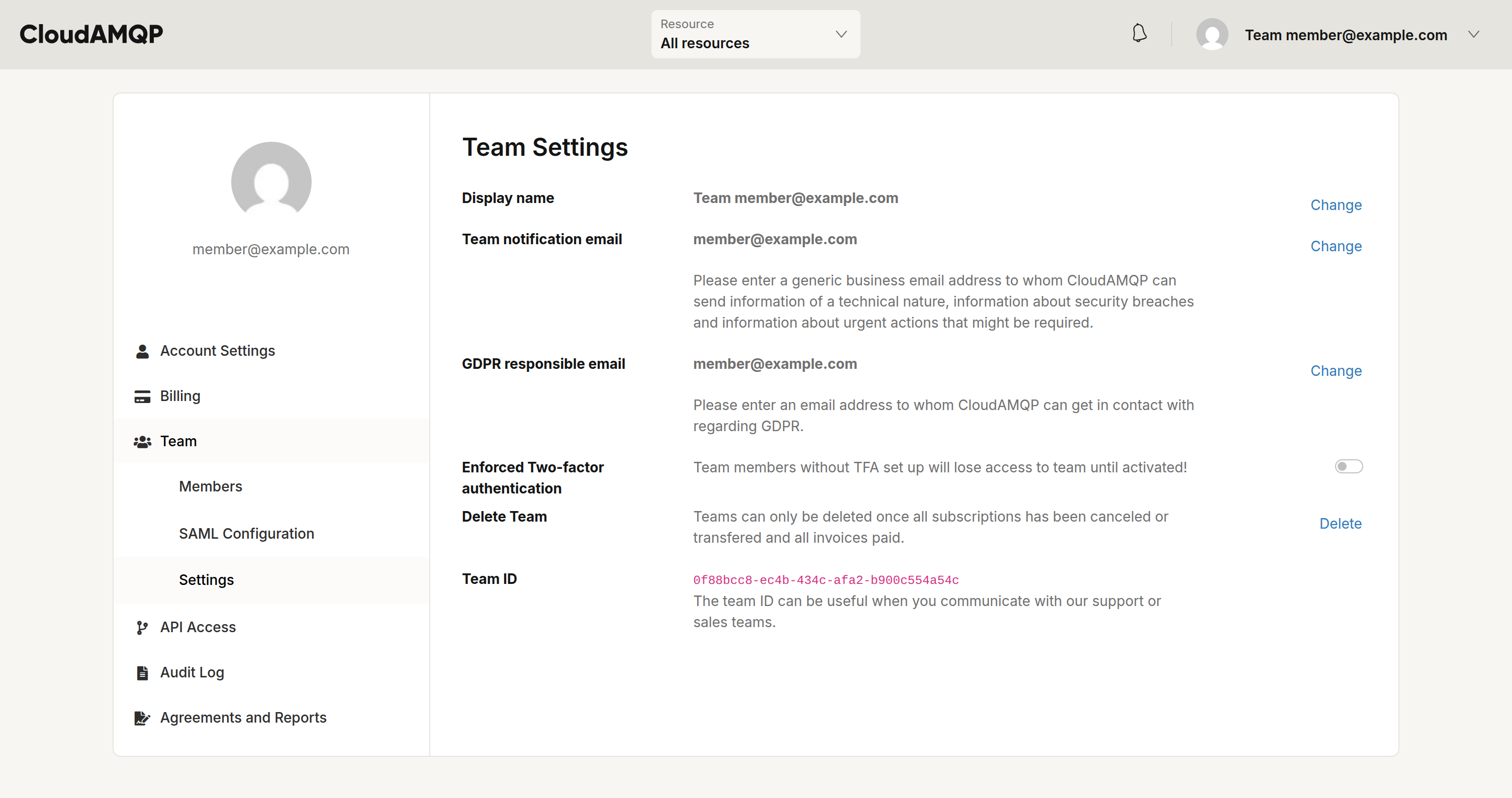
While enforcement is on, members who haven't set up 2FA lose access to the team until they enable it, so let your team know before turning it on.
Lost your device?
If you lose access to your authenticator app and don't have a backup phone number, contact us at support@cloudamqp.com and we'll help you regain access to your account.