SAML Authentication setup
Setting up SAML (Security Assertion Markup Language) will allow your team members to quickly log in to the team CloudAMQP account using the credentials stored in your organization’s Identity Provider (IdP).
In the CloudAMQP Console under
Team Settings
→
SAML Configuration
you will find the information needed for setting up and where to upload your IdP metadata.
Provisioning
Users and/or groups assigned through your IdP directory will be granted access. After SAML has been configured for your team, new users will be auto-provisioned into your team. This works as long as the first login is initiated from your IdP (and the account email hasn’t been used with CloudAMQP previously).
Note: You can only use “Sign in with SAML” on the CloudAMQP login page when the user exists in CloudAMQP.
Roles
To enforce specific roles, your IdP must send an extra
84codes.roles
attribute in the SAML response. You can see examples of the attribute value on your SAML page:
customer.cloudamqp.com/team/saml
Enforcing SAML authentication
You can also enforce SAML-initiated logins and disable password-based authentication. User accounts that are member of more than one team can still log in using password based authentication, however if they try and access a team where SAML is enforced then a SAML authentication will be needed before access is granted to that team.
To enforce SAML authentication, tick the checkbox stating
Enforce SAML, disable password-based login
on
customer.cloudamqp.com/team/saml
once SAML is configured.
You can only connect a SAML application on your IdP to a single team in CloudAMQP. If your organization uses multiple CloudAMQP teams, you will need to configure one SAML application per team.
Guides
We have step-by-step instructions on configuring SAML for some of the most popular identity providers:
Troubleshooting
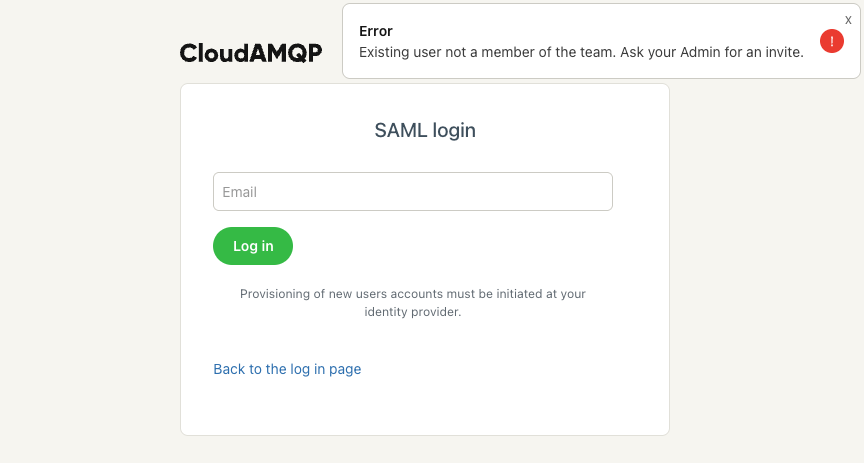
What if the user already exists on CloudAMQP?
For existing accounts, they will require an invite to the CloudAMQP Team by admins. Please check your respective IdP guide for more details.
How do I remove access?
Please note that if an account is removed from the IdP directory, the account will still have access in the CloudAMQP console and the user will need to be deleted from the CloudAMQP console to cease access.
Error: “No SAML setup for this team”.
There is a checklist of reasons for this error:
-
Ensure the user has been initiated via the IdP. Please check your respective IdP instructions.
-
Check that the Identifier (Entity ID) and Reply URL are correct.
-
Try deleting the user via CloudAMQP and signing in again.